Bedtime Setup
How to Set a Sleep Timer on iPhone for Bedtime Audio
To stop audio after a set time on iPhone, open Clock, choose Timers, set a duration, then select When Timer Ends > Stop Playing. Tap Set and Start. In SleepBetter, you can instead open Set timer on the player and choose a preset or custom duration. Both approaches let you plan a listening session without leaving sound running for the whole night.

At a glance
- The iPhone Clock app has a Stop Playing option; a normal timer sound will ring instead.
- SleepBetter offers 15, 30, 45, 60 and 90-minute presets plus a custom duration.
- Use one timer at a time and check a short session while awake before relying on it overnight.
In this article
Option 1: use the iPhone Clock app
Apple documents Stop Playing as a way to end audio or video after a chosen duration. This system option is available independently of a SleepBetter subscription. The exact wording may vary with your iPhone language or iOS version.
- Start your audio, then open the Clock app on your iPhone.
- Open Timers and set the hours, minutes and seconds you want.
- Tap When Timer Ends and scroll to Stop Playing at the bottom of the list.
- Select Stop Playing, tap Set, then tap Start.
- Return to your audio app and confirm the sound is still playing. Try a short timer once while awake.
Apple: set timers in Clock on iPhone
If you are still choosing what to play, try the rain sounds preview or the no-talking ASMR preview, browse all 71 SleepBetter recordings, or see how the SleepBetter app works.
Set an Apple Music sleep timer on iPhone
For an Apple Music bedtime playlist, use the Clock Stop Playing option above. It lets you choose the listening duration without changing the playlist. This is a playback timer, not a sleep detector.
Run a short test before relying on it at bedtime. If music stops earlier than expected, check whether the track or playlist ended and whether another timer is active. When you later want an audible timer, change When Timer Ends back to a sound.
- Start the song, album or playlist in Apple Music.
- In Clock, choose a duration and set When Timer Ends to Stop Playing, then tap Set and Start.
- Return to Music to confirm playback, then leave the timer running.
Using built-in iPhone rain instead? Set its separate Background Sounds timer
Set a Spotify sleep timer on iPhone
Spotify has its own Sleep Timer for music and podcasts. Start playback and open the full Now Playing screen first: the menu on an album or playlist is not the same as the menu for the track currently playing. Spotify documents different entry points for music and podcasts.
For example, choose 30 minutes if you want a playlist to stop halfway through your evening, or End of track if you want the current selection to finish. Avoid starting a second countdown in Clock for the same session. Spotify's timer belongs to Spotify; it does not configure the timer in SleepBetter.
- Play a song or podcast in the Spotify iPhone app, then tap the Now Playing bar to open the full player.
- For music, tap the three-dot menu in the player and choose Sleep Timer. For a podcast, tap the moon icon beside the playback controls.
- Select 5, 10, 15, 30 or 45 minutes, 1 hour, or End of track, using the options shown for the content you are playing.
- Look for the confirmation that the timer is set. Reopen the timer control to check the remaining time or choose Turn off timer to cancel it.
Option 2: set the timer inside SleepBetter
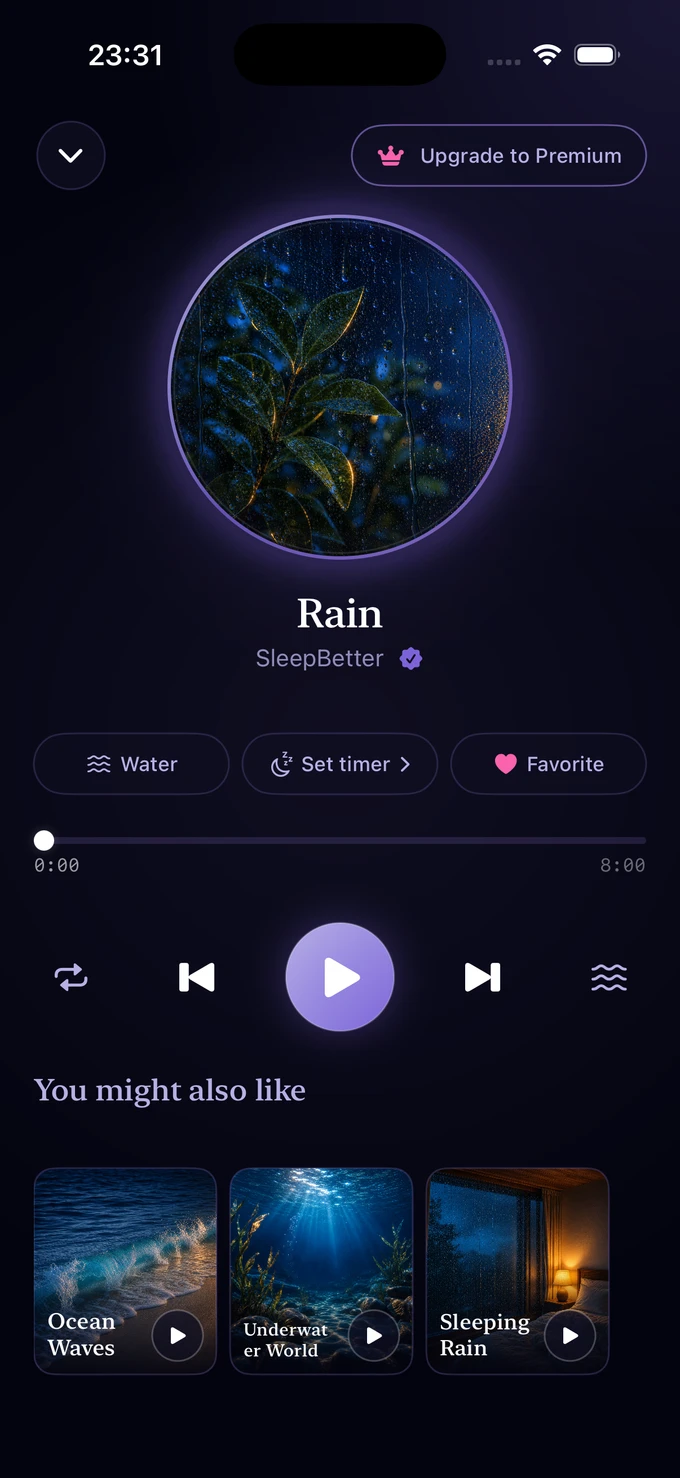
Open a sound such as Rain and look for Set timer below the track title. You do not need Premium to create or change the in-app timer. If an older version of the app shows an upgrade screen, update SleepBetter from the App Store or use the Clock option above.
- Open the sound player in SleepBetter and start playback.
- Tap Set timer beside the category and Favorite controls.
- Choose 15, 30, 45, 60 or 90 minutes. For another duration, choose Custom, select hours and minutes, and tap Set timer.
- Check the remaining time on the player. Reopen the timer to change it or choose Turn off timer to cancel it.
Which sleep timer should you choose?
Choose the option that matches where you listen. There is no need to start both timers for the same session. If two countdowns are active, the earlier one may stop the sound before you expect.
| Option | Useful when | Check first |
|---|---|---|
| iPhone Clock: Stop Playing | You want the system timer for audio or video. | Select Stop Playing instead of an alert sound and start the timer. |
| Spotify: Sleep Timer | You are listening to music or a podcast in Spotify. | Open the full player and check the timer confirmation; controls differ for music and podcasts. |
| SleepBetter: Set timer | You want to choose the duration from the sound player. | Check the remaining time on the player after you set it. |
How long should a sleep timer run?
There is no duration that guarantees you will be asleep when playback stops. Choose how long you want sound as part of your evening. A 15-minute preset can fit a brief wind-down; a longer setting leaves more listening time. Those are choices, not clinical recommendations or targets to beat.
If stopping the sound bothers you, adjust the duration on another evening or try a different texture. Avoid repeatedly restarting the timer as a way to check whether you have fallen asleep. The point is to reduce decisions after lights out.
If the timer rings or playback stops unexpectedly
If Clock rings at the end, check that When Timer Ends is set to Stop Playing rather than a ringtone. When you later need an audible cooking or task timer, choose a sound again and check the setting before starting.
If playback ends early, check both Clock and the timer inside your audio app. Also check whether the track itself ended or another device disconnected. A short test while you are awake is more useful than changing several settings in bed.
Do not assume a sleep timer guarantees that morning alarms or other important alerts will be audible. Keep the listening volume modest and check your separate alarm settings and device setup.
If Spotify's Sleep Timer is missing, first open the full Now Playing screen, check the control for the type of audio you are playing, and update the Spotify app. The layout can vary by version. If you use Clock > Stop Playing instead, check a short session with your actual playback device; do not assume a local Clock timer will stop a remote Spotify Connect speaker.
Make the next evening easier
Pick a sound before bedtime and save it as a favorite. Set one timer, confirm playback and put the phone on a stable surface where it will not be covered. You can use rain, waves or no-talking ASMR according to what you enjoy.
A timer controls playback duration; it does not detect sleep, measure sleep stages or treat a sleep condition. If silence feels better, you do not need background audio at all.
Common questions
How do I turn off Apple Music after 30 minutes?
Start your music, open Clock > Timers and set 30 minutes. Under When Timer Ends, choose Stop Playing, tap Set and start the timer. Check the setup with a short test first.
Is this the timer for built-in iPhone Background Sounds?
Apple Background Sounds has a separate Stop Sounds with a Timer setting on iOS 26 and later. For its Rain or Ocean sound, use that setting under Accessibility > Audio & Visual > Background Sounds. Do not assume the Clock timer works identically for this feature.
Does the Clock timer keep running when the iPhone locks?
Yes. Apple states that a timer continues when you open another app or the iPhone goes to sleep. Check a short Stop Playing session with your audio setup while awake.
Do I need Premium to use a sleep timer?
No. You do not need Premium to create or change the timer inside SleepBetter. The Stop Playing option in the iPhone Clock app is a separate system feature.
Does the SleepBetter timer know when I fall asleep?
No. It uses the duration you choose. It does not detect sleep or adjust the countdown based on sleep stages.
Why does my iPhone timer no longer make a sound?
If you previously selected Stop Playing in Clock, check When Timer Ends before starting your next timer. Choose an alert sound again when you need an audible reminder. This is separate from the Alarm tab; check a morning alarm there independently.
Can Spotify stop playing automatically on iPhone?
Yes. In Spotify's full Now Playing screen, open the three-dot menu for music or the moon control for podcasts, choose Sleep Timer and select a duration. Use the timer in Spotify itself when setting the end of a Spotify session.